
How to Authorise IMPORTRANGE Connections in Bulk — Google Sheets Guide
If you manage Google Sheets that pull data from multiple files using =IMPORTRANGE(), you already know the problem. Every new connection requires a manual “Allow access” click — one by one, for every formula, in every spreadsheet. For small setups this is annoying. For teams managing dozens of linked sheets, it becomes a genuine maintenance crisis.
This guide covers everything you need to know about IMPORTRANGE authorisation: how it works, why connections break, how to fix them in bulk, and a hidden Google Sheets limit that most users only discover when it is too late.
How IMPORTRANGE authorisation works
When you add an =IMPORTRANGE() formula to a Google Sheet for the first time, Google requires a human to manually approve the connection between the source and destination spreadsheet. This is a deliberate security measure — it prevents spreadsheets from silently pulling data from files you did not intend to share.
The authorisation is stored at the source spreadsheet level. Once approved, any editor of the destination sheet can use IMPORTRANGE to pull from any range in that source — no further approval needed for that specific pair.
The key detail most people miss: the authorisation is tied to the user who clicked “Allow access”, not to the formula itself. If that user loses access to the source spreadsheet, every IMPORTRANGE connection they authorised breaks immediately — across all destination sheets.
Why IMPORTRANGE connections break
There are four common causes:
1. A new collaborator opens the file. If someone with a fresh Google account opens a destination sheet, the existing connections work fine — but any new IMPORTRANGE formulas they add will need their own authorisation.
2. The authorising user is removed from the source. This is the most disruptive cause. One permission change on the source file can silently break multiple connected sheets simultaneously.
3. The source tab was renamed. If the range string in your formula references Sheet1!A:A but someone renamed that tab to Data, the formula breaks with a #REF! error.
4. The source file was deleted or moved. IMPORTRANGE uses the spreadsheet ID in the URL, not the file name — so renaming is safe, but deletion or Drive reorganisation that changes the ID is not.
How to fix IMPORTRANGE #REF errors
For a single connection: hover over the #REF! cell, click “Allow access” in the popup, and the data loads.
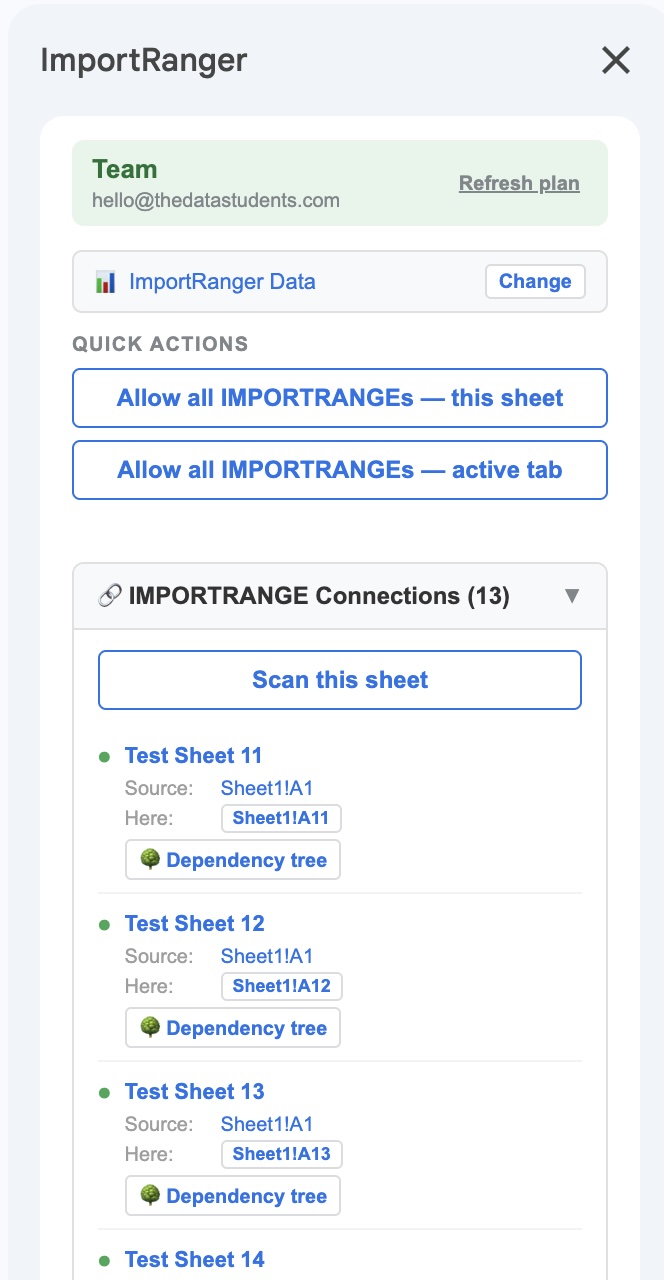
For multiple connections across a complex spreadsheet, the manual approach breaks down fast. The most efficient solution is to use ImportRanger, a free Google Sheets add-on that scans every cell in your spreadsheet for IMPORTRANGE formulas and authorises all pending connections in one click.
It also shows you a full connections list — every IMPORTRANGE in the file, grouped by source spreadsheet, with its current status (authorised, pending, or broken), the range being pulled, and the exact cell where the formula lives. For teams inheriting complex spreadsheets or onboarding new collaborators, this visibility alone saves significant time.
The hidden 600-connection limit
Google Sheets imposes a limit of 600 authorised IMPORTRANGE connections per source spreadsheet. Most users never hit this — but for popular source files shared across large organisations, it is a real ceiling.
What makes this limit particularly dangerous is that it is invisible. There is no warning as you approach it, no dashboard showing your current count, and no official API to query it. You find out when new connections simply stop working.
Two important things to know about this limit:
- Deleting the destination sheet does not free a slot. The connection persists until the user who authorised it is removed from the source spreadsheet’s sharing settings.
- The only way to reclaim slots is to remove the authorising user from the source sheet, which revokes all connections that user approved in one action.
ImportRanger’s Team plan tracks every authorisation in a dedicated audit log — giving you a running count of connections per source file and a record of which user authorised each one, so you know exactly which account to remove if you need to reclaim capacity.
Best practices for IMPORTRANGE at scale
- Designate one account for authorisations in high-volume setups. If all connections are authorised by a single dedicated account, revoking and re-authorising becomes a controlled, repeatable process rather than an emergency.
- Audit your connections regularly. Use ImportRanger’s connections list to see every active IMPORTRANGE in a file before the count becomes unmanageable.
- Keep source ranges small. IMPORTRANGE transfers the entire specified range on every refresh. Importing a summarised value is significantly faster than importing thousands of raw rows.
Summary
IMPORTRANGE is one of the most useful functions in Google Sheets for teams working across multiple files — but its authorisation model creates real operational overhead at scale. Understanding why connections break, how to fix them efficiently, and the limits that apply at high volume puts you in a much stronger position than most Sheets users.
 Install ImportRanger Free on Google Workspace